
Employees will receive email notifications when it's their turn to sign a document:
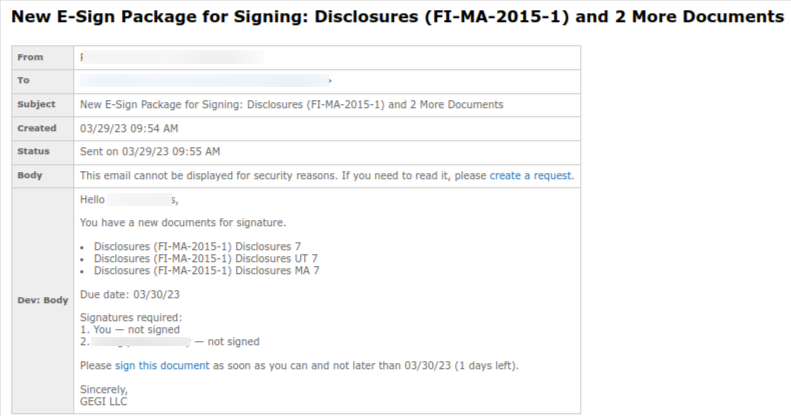
Click the sign this package link to proceed to the Sign Package page:
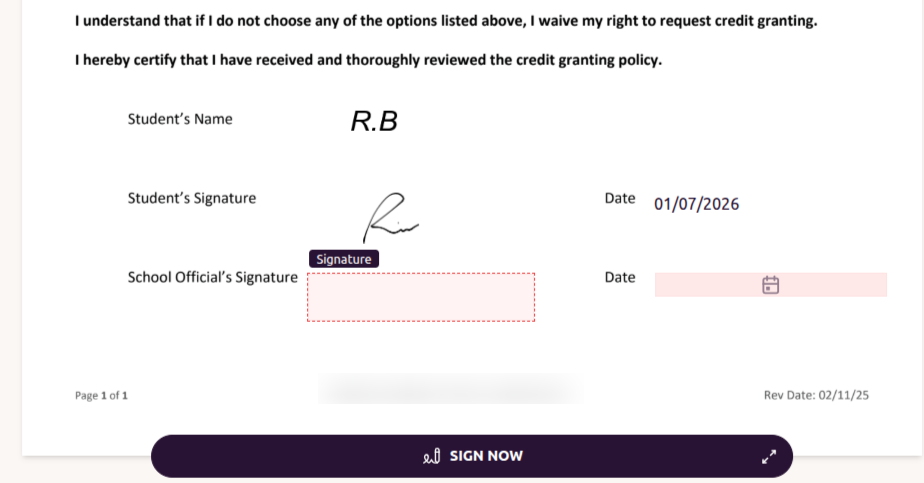
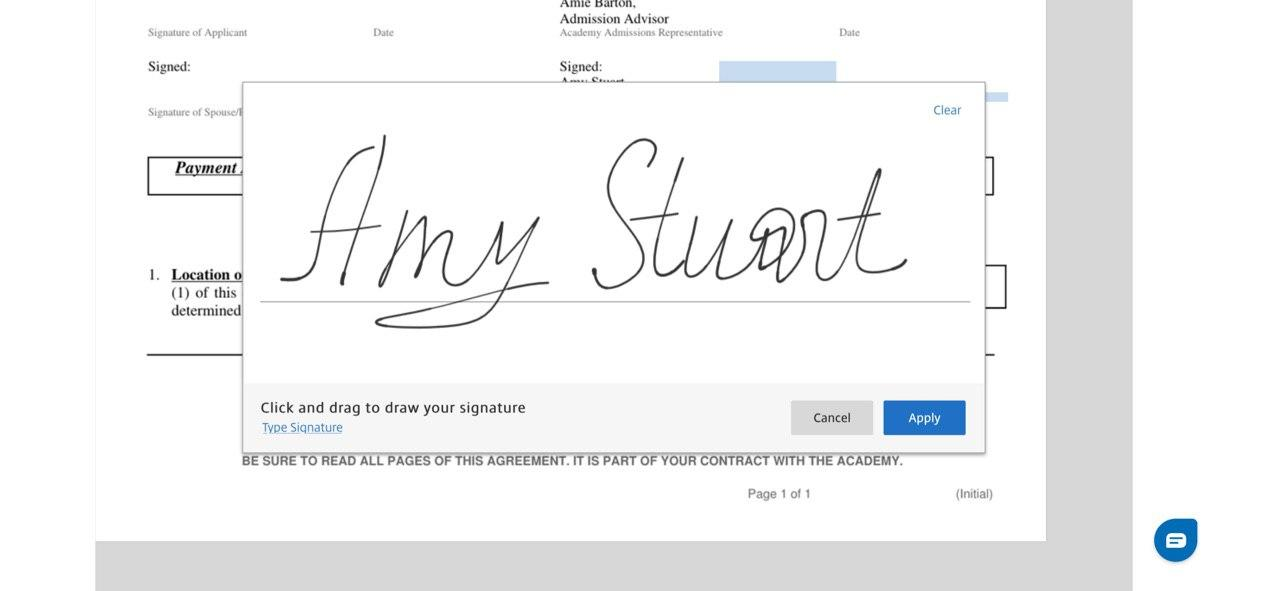
Click the SIGN NOW button in the document on the Sign Package page and put your signature on the pop-up signature pad:
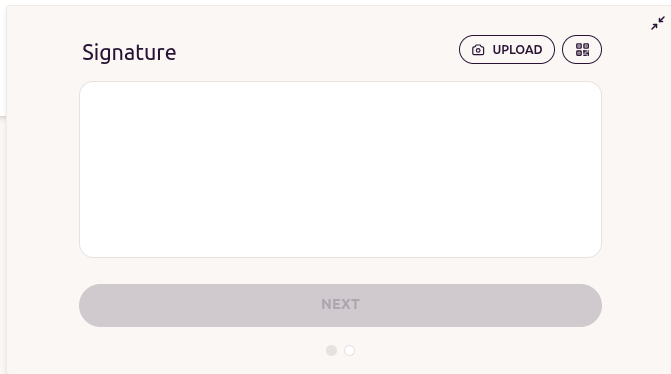
Your signature will be automatically placed in all the required fields so you will not have to sign each field separately.
Read the document to the end filling all required fields.
Please, note that if the e-sign package hasn't been signed by all the signers before the due date the document will be set as Expired and signing will be unavailable.
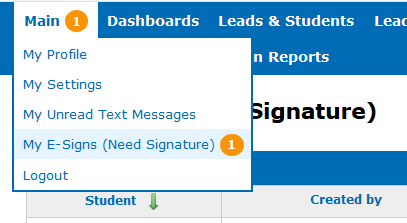
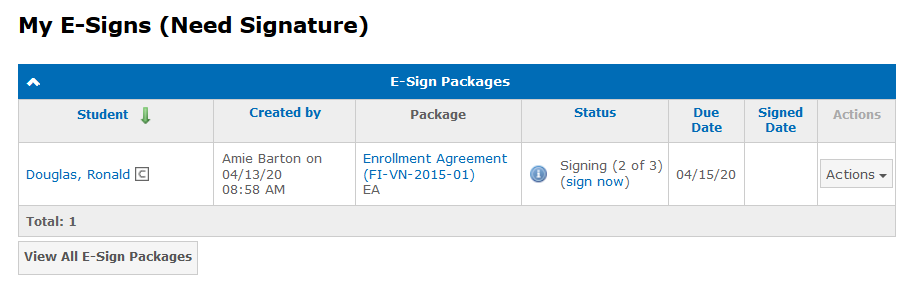
Employees will also see the required signing notifications in the Main menu tab → My E-Signs (Need Signature) menu item.
Note: The number in the orange circle represents the documents count that require signing:
The notification will be displayed in the information message under the main menu as well:

To proceed to document signing click the sign now link in the information message or on the My E-Signs (Need Signature) page in the corresponding document row:
Sign E-Sign Packages on Mobile Device
A signature pad will be displayed when signing the e-sign document on mobile devices (smartphone, tablet). For your convenience, you can rotate the device to the landscape (horizontal) view.
After that, you will be able to draw a signature by moving your finger or stylus on the screen:
Note: You may encounter technical issues when signing the documents with multiple pages (e.g., Disclosure) on a mobile device. That is why we recommend signing the e-sign documents using a desktop device.