
TABLE OF CONTENTS
What Are the Originations and Disbursements Reports?
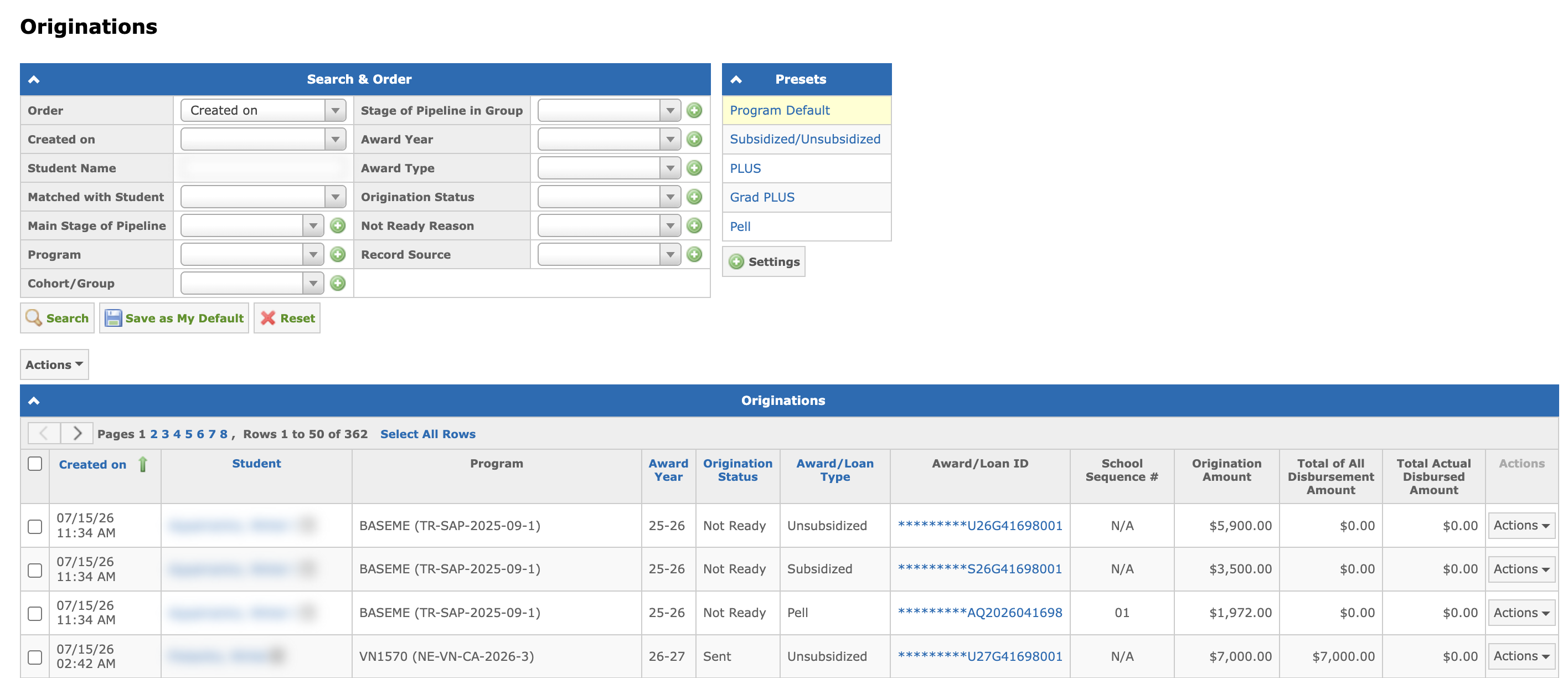
GEGI provides two reports for managing Pell and Direct Loan records submitted to the COD system:
- Originations Report — Located in Financial Aid → Originations:
- Disbursements Report — Located in Financial Aid → Disbursements:
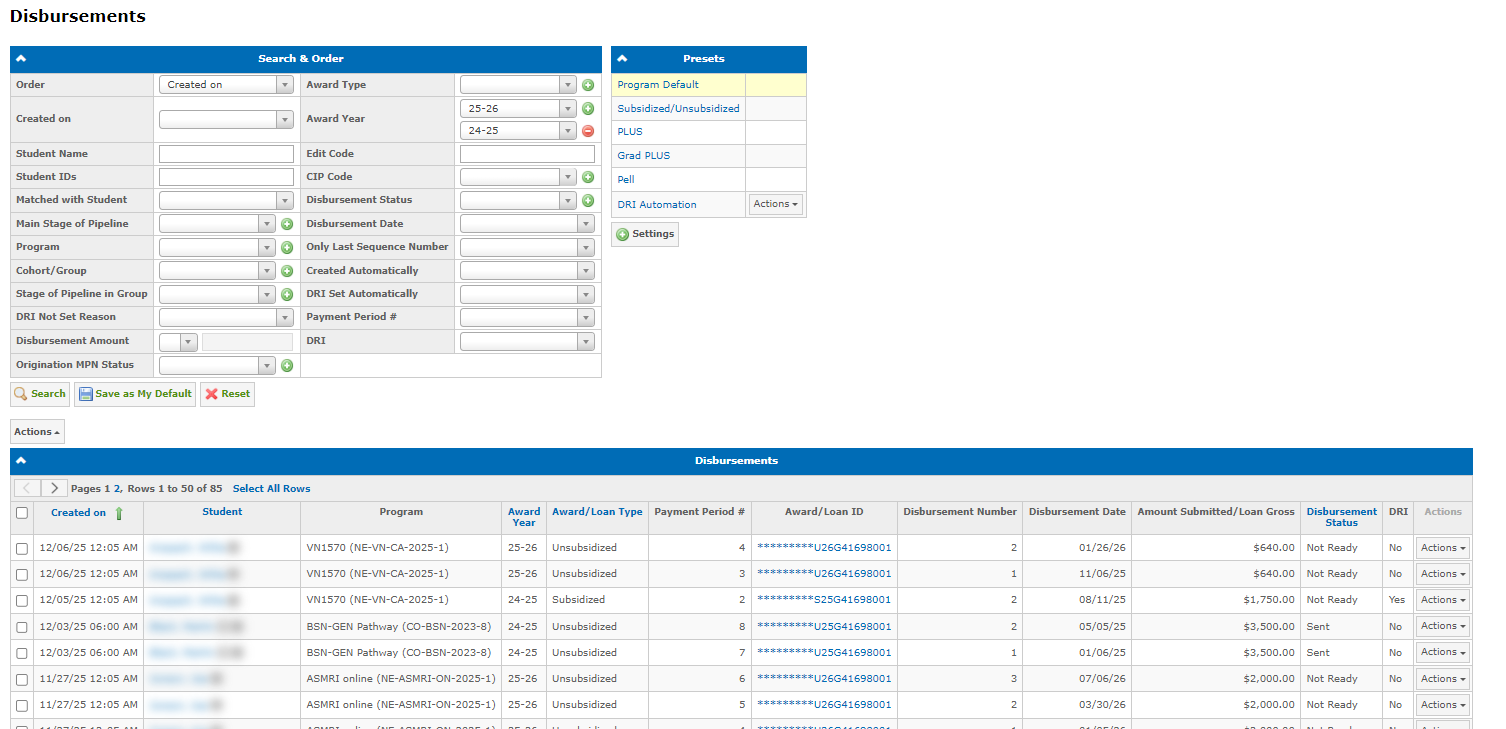
Each report displays detailed records with student information, program details, award year, loan type, and status information. Additional columns can be displayed by creating and selecting different presets in the Presets panel.
Clicking the student’s name opens the full record view to review and manage the related record.
Originations Report
Send Records to COD
You can bulk send origination records to COD directly from the Originations Report:
Select the required records.
Open the Actions drop-down menu (available at the top and bottom of the report).
Choose Send to COD:
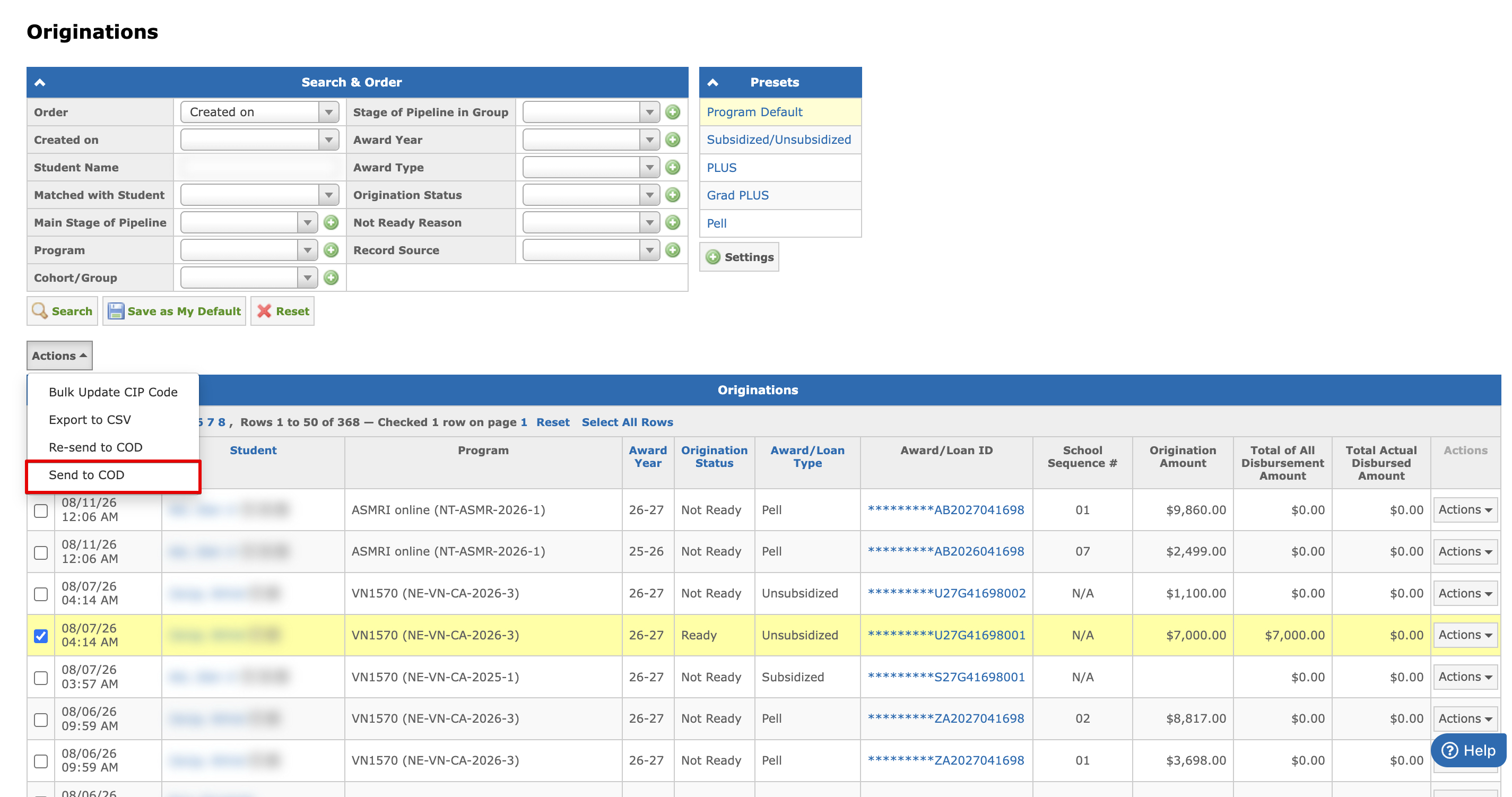
Note: Only originations in the Ready status can be sent to COD.
Re-send Records to COD
You can bulk re-send origination records to COD directly from the Originations Report:
- Select the required records.
- Open the Actions drop-down menu.
- Choose Re-send to COD:
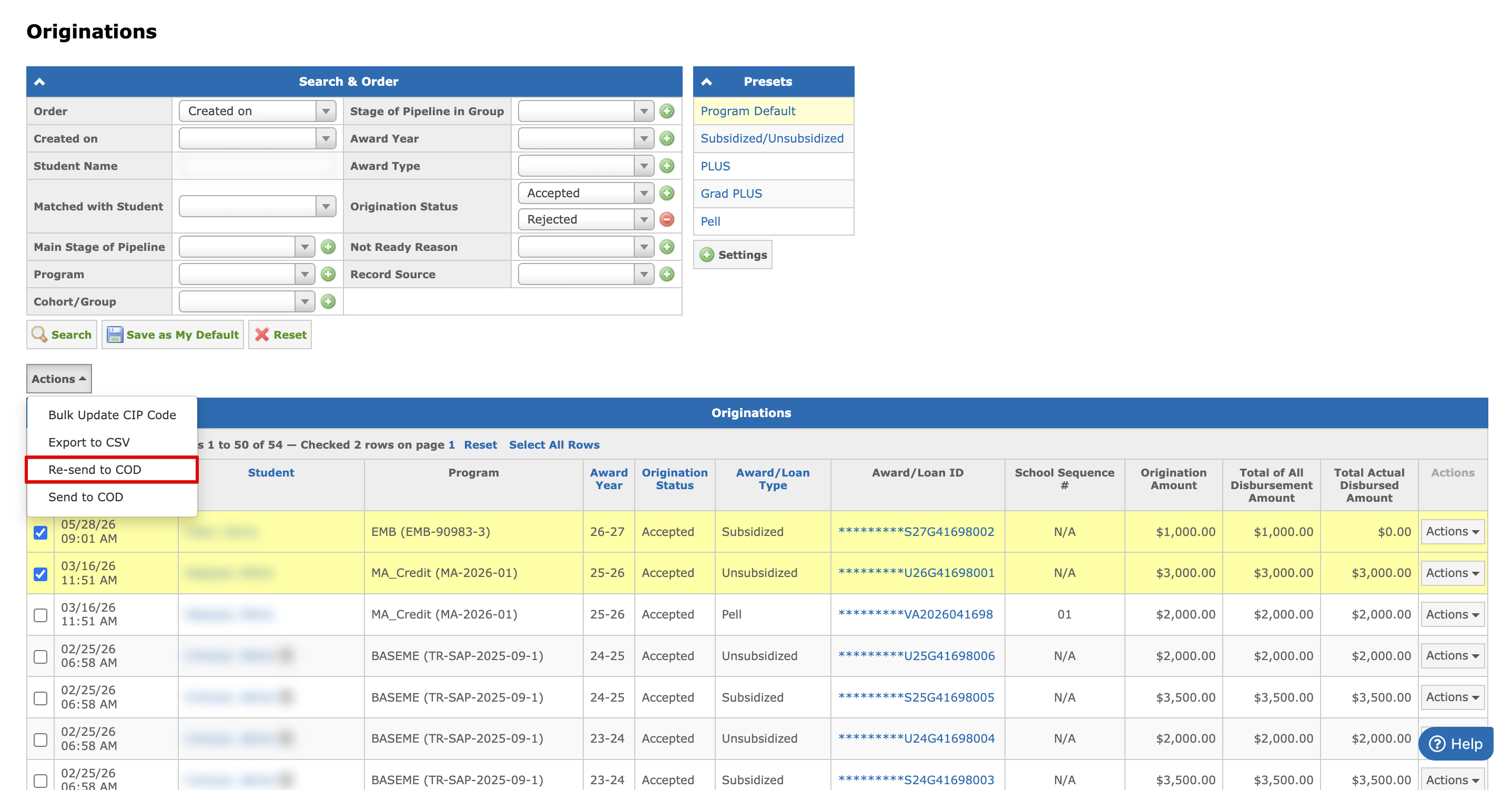
Note: Only records in the "Accepted", "Corrected", or "Rejected" status can be re-sent. Requires the Re-send Originations and Disbursements to COD permission.
Track Not Ready Originations
The Originations Report allows you to monitor originations that cannot be validated to the Ready status. The Not Ready Reason column explains why the origination record cannot be validated from the Not Ready to Ready status.
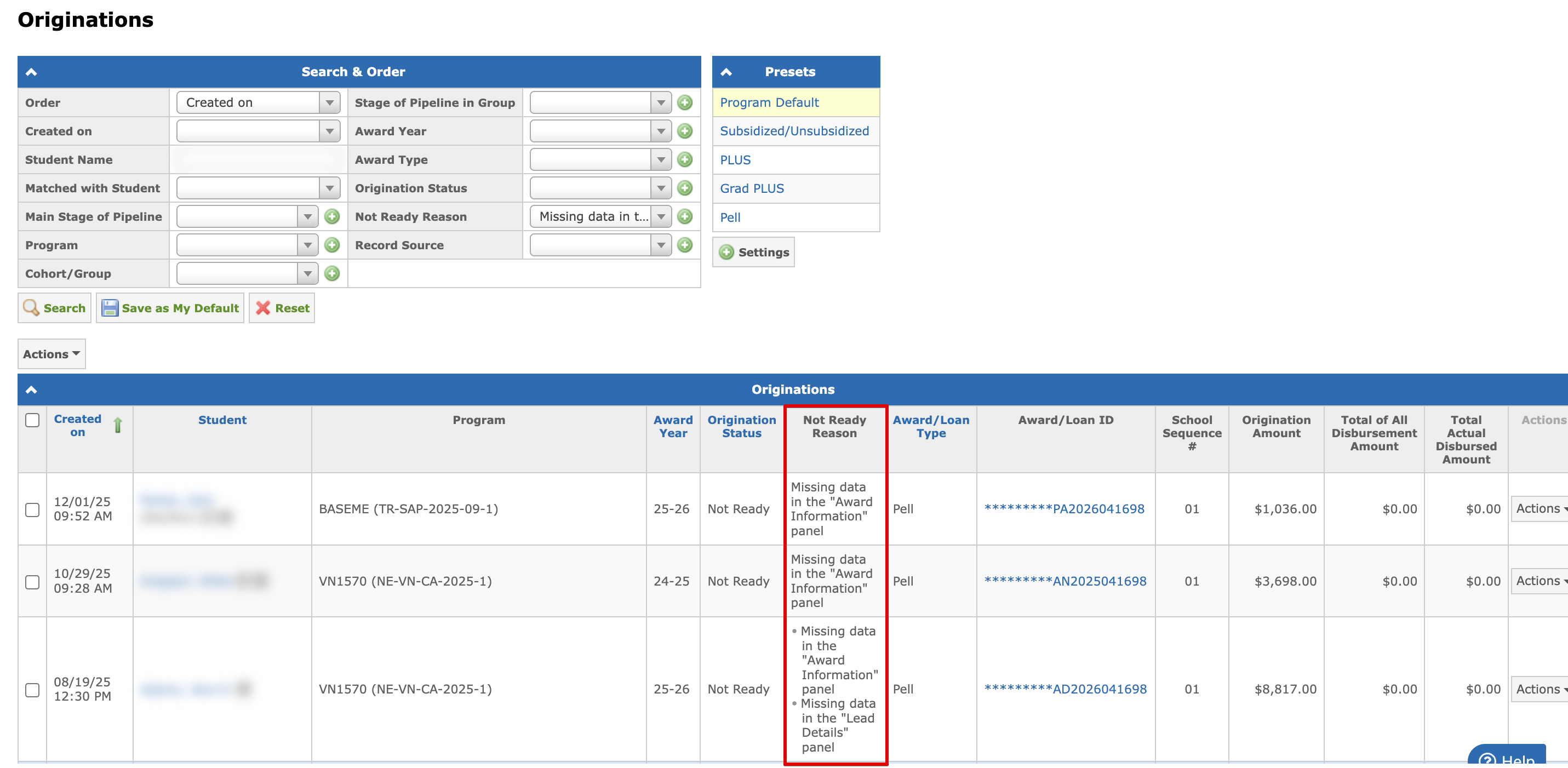
Note: To display Not Ready Reason column, select or create a preset using the Presets panel.
Disbursements Report
Send Records to COD
You can bulk send disbursement records to COD directly from the Disbursements Report:
Select the required disbursement records.
Open the Actions drop-down menu (available at the top and bottom of the report).
Choose Send to COD:
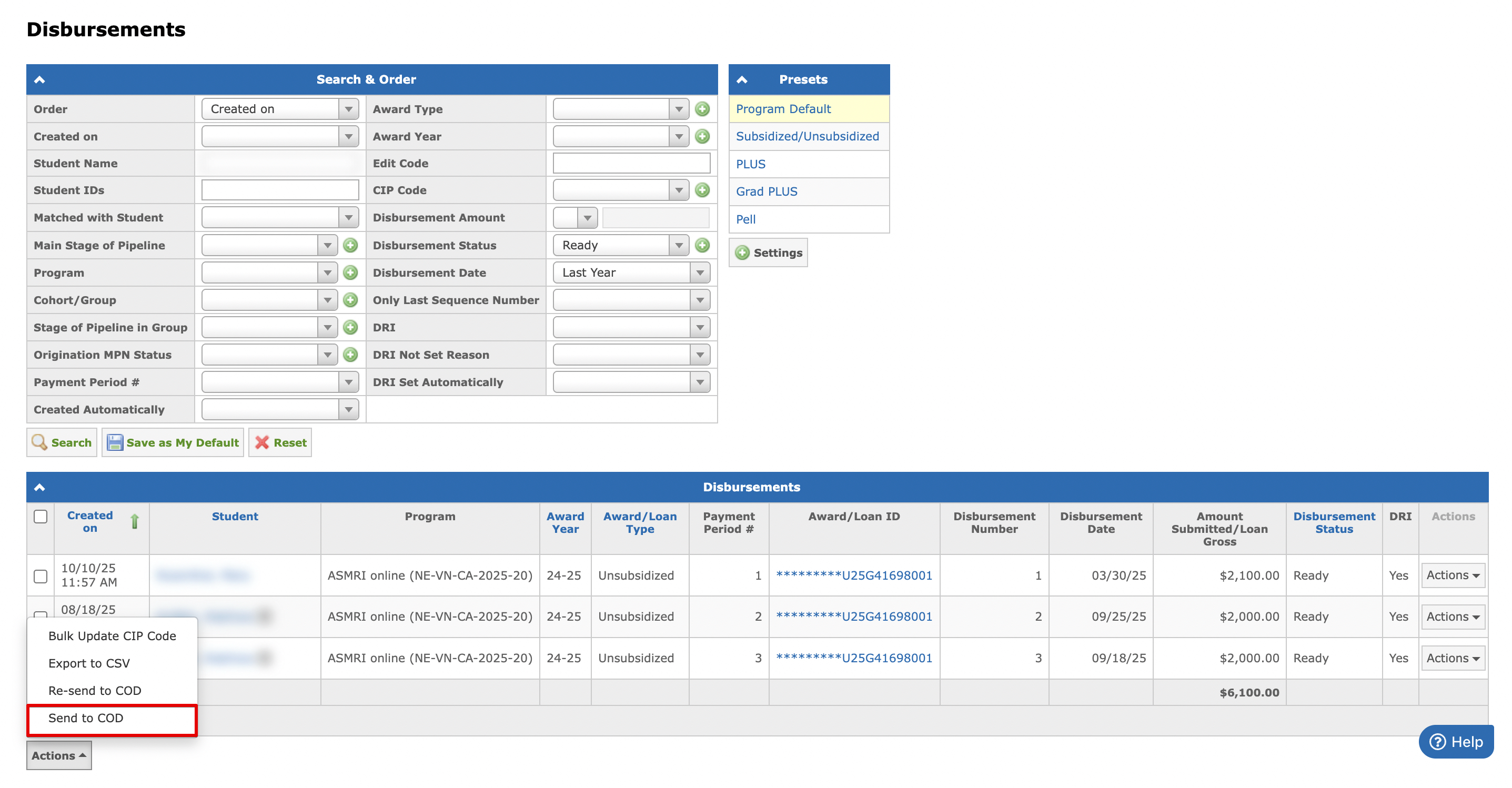
Note: Only disbursements in the Ready status can be sent to COD.
Re-send Records to COD
You can bulk re-send disbursement records to COD directly from the Disbursements Report:
- Select the required records.
- Open the Actions drop-down menu.
- Choose Re-send to COD:
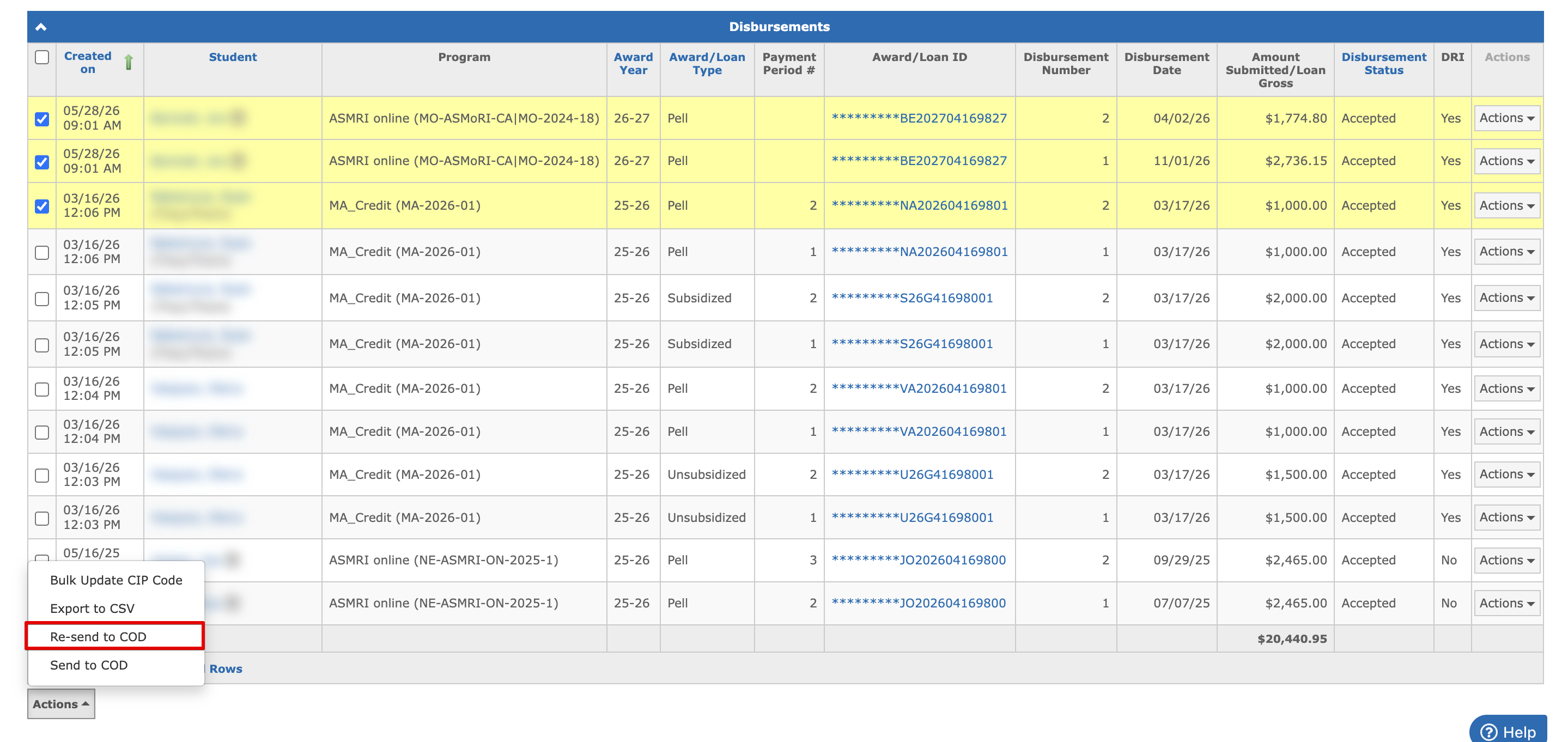
Note: Only records in the "Accepted", "Corrected", or "Rejected" status can be re-sent. Requires the Re-send Originations and Disbursements to COD permission.
Track Automatic Disbursements
The Disbursements Report also allows you to monitor the creation and processing of Automatic Disbursements.
The following columns provide important information:
- Created Automatically — indicates whether the disbursement was created manually or by GEGI.
- DRI Set Automatically — shows whether the Disbursement Release Indicator (DRI) was set by the system or by a user.
- DRI Not Set Reason — explains why the DRI was not automatically set for a record.
Note: To display these columns, select or create a preset using the Presets panel.
There are currently eleven reasons for DRI not being set:
The student has a draft Financial Aid Plan.
Not enough weeks have passed since the student’s start date (for payment period 1 disbursements).
The maximum number of attendance checks has been reached (for payment period 1 disbursements).
No attendance was recorded for the student.
The automatically calculated disbursement date falls on a weekend or holiday.
The student’s Financial Aid status is not "Cleared."
The student’s stage in the group is not "ACTIVE."
The student has not met all SAP (Satisfactory Academic Progress) requirements for the payment period.
The origination MPN status must be "Accepted."
Disbursement totals must match FA plan payment period amounts.
The disbursement amount is $0.