Use the Check-In tile on the home screen to record your attendance. Depending on how your class is set up the check-in can be performed using a QR Code, a QR Code with Geolocation, or Geolocation only.
TABLE OF CONTENTS
- The Check-In Tile
- QR Code Check-In
- QR Code with Geolocation Check-In
- Geolocation Check-In (No QR)
- During Class
- Breaks
- Checking Out
- Error Messages
The Check-In Tile
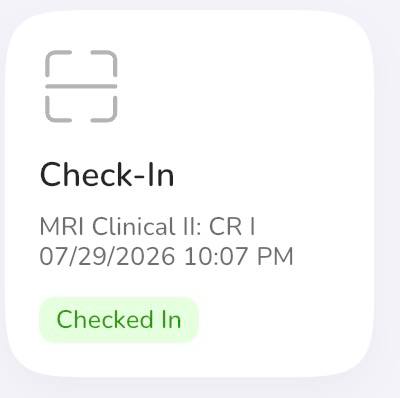
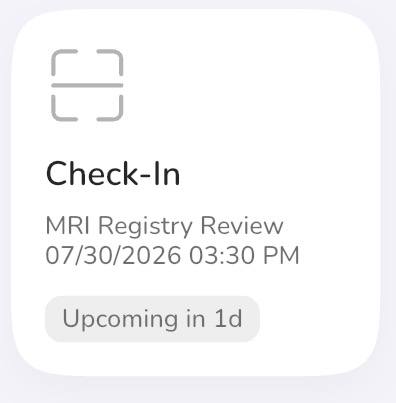
The tile is always titled Check-In. Its current state shows as a colored badge underneath:
- Checked In (green) — you have an active session.
- On Break (neutral) — your active session is paused.
- Check In Now (red) — your class has started and you have not checked in.
- Upcoming (neutral) — your next class has not started yet; the badge counts down.
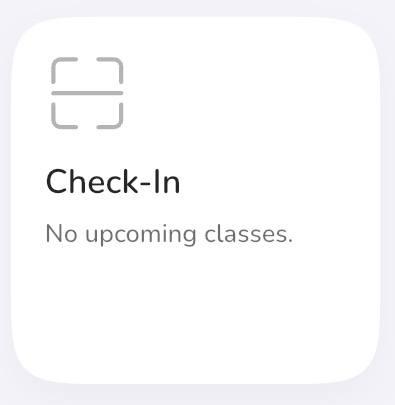
- No badge — you have no eligible class right now.
QR Code Check-In
The first time you open the QR scanner, your device will ask for camera access. Tap Allow to continue.
- Tap the Check-In tile.
- Point the camera at the QR code your instructor is displaying.
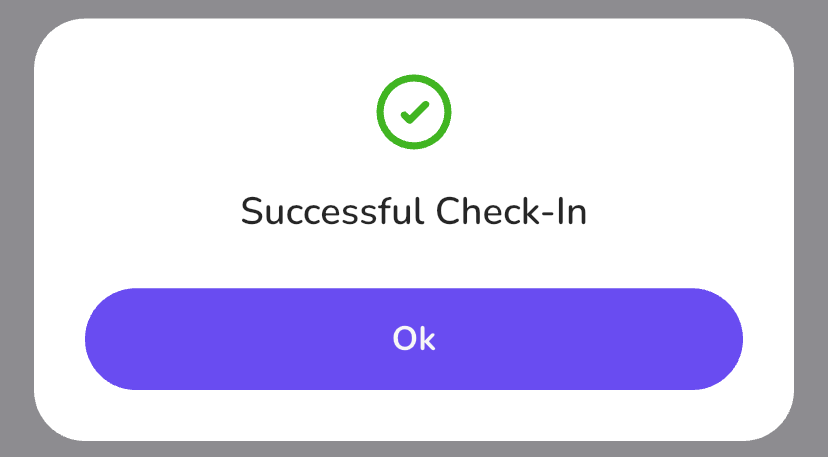
- The app will show a successful check-in message.
QR Code with Geolocation Check-In
This works the same as the QR Code check-in with one difference: the app also captures your location at the moment you scan to confirm you are at the class location. If your location can not be captured, you will not check-in, see Error Messages below.
Geolocation Check-In (No QR)
For classes that use geolocation only, tapping the Check-In tile checks you in immediately, no camera or scanning involved.
- Tap the Check-In tile.
- The app captures your current location and submits your check-in on the spot.
- The app shows a successful check-in message.
During Class
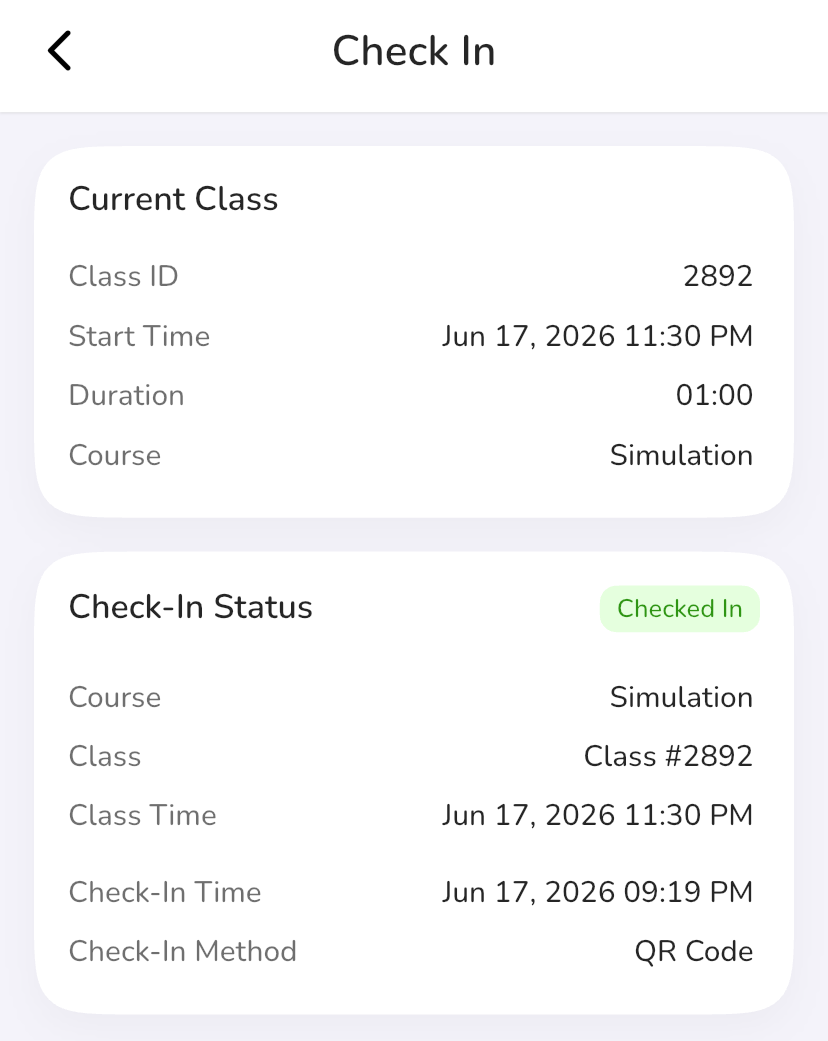
You can view the check-in information during the class by clicking the Check-In tile:
Breaks
You can record breaks during an active session:
- Tap the Check-In tile.
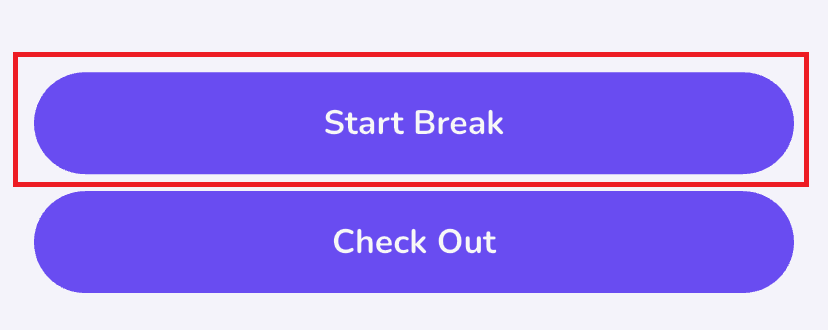
- Tap Start Break on the active session screen.
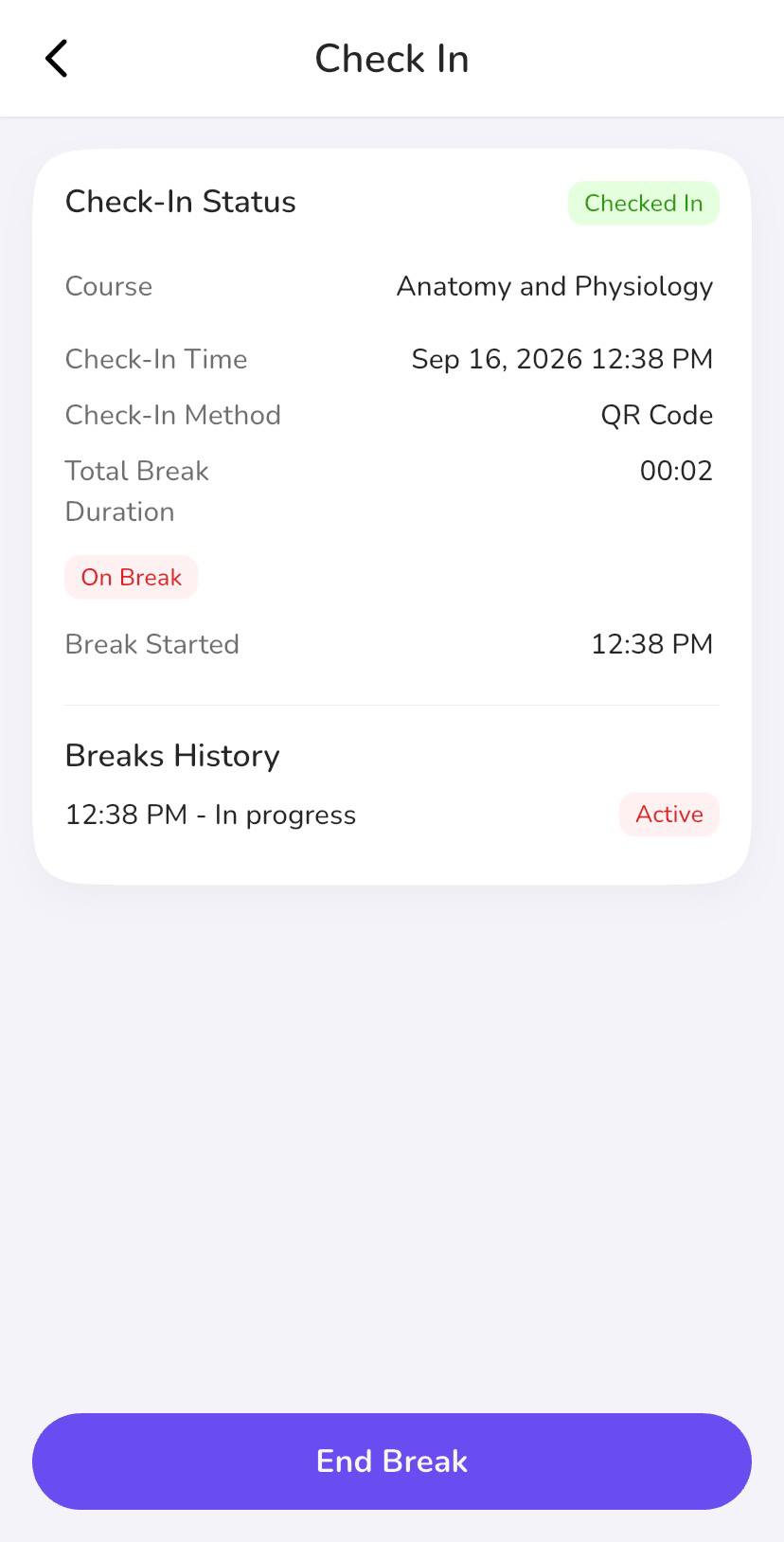
- Tap End Break when you return.
While on break, the active session screen shows the time you started the break and the End Break button. You can also see the total length of all breaks taken during the current session.
Note: Breaks are only available in courses where your instructor has enabled them.
Checking Out
- QR Code or QR Code with Geolocation: tap the Check-In tile, then End Class and scan the QR code again to end your session.
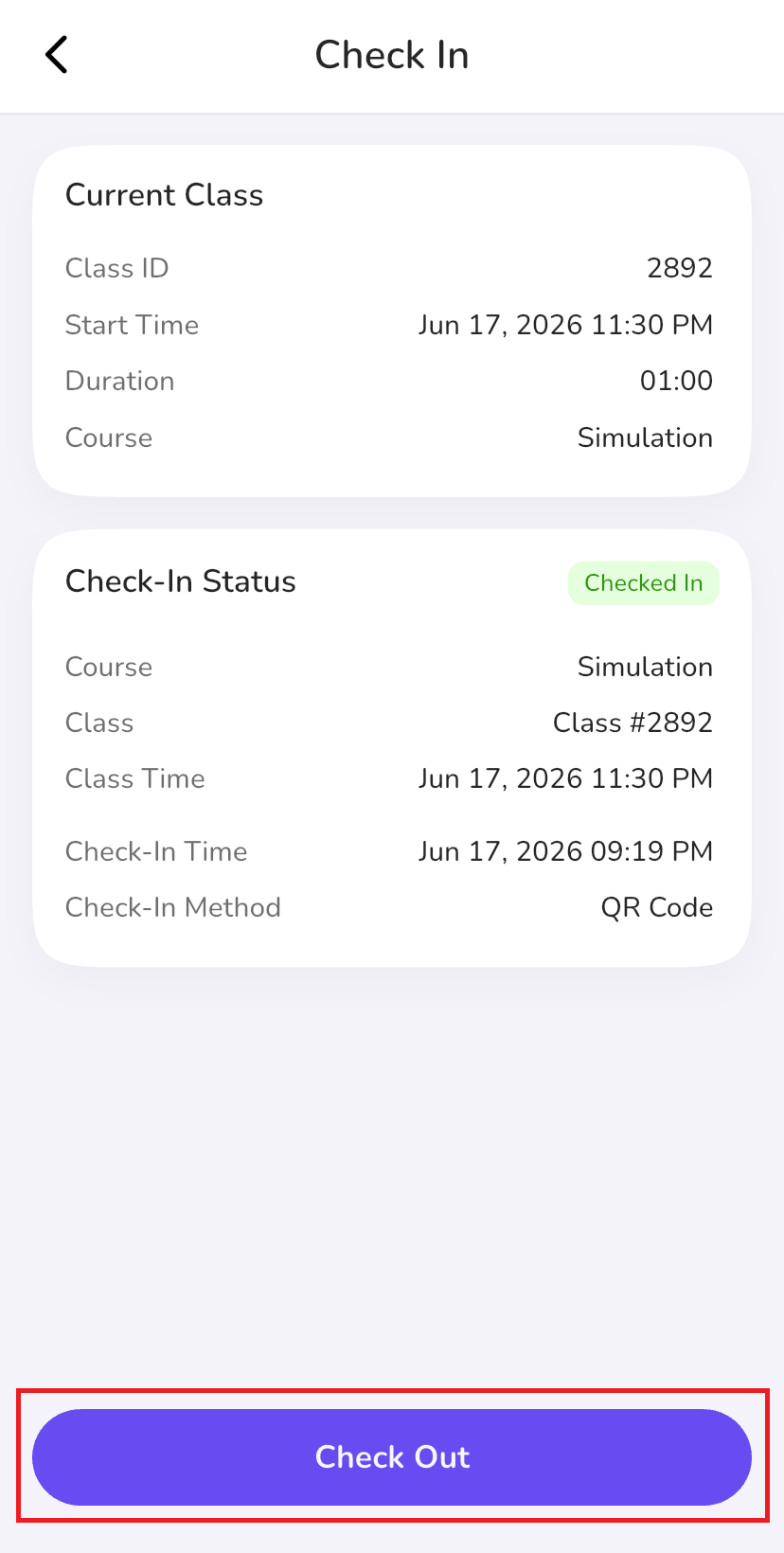
- Geolocation: tap the Check-In tile, then Check-Out. No scanning needed, the app closes your active session directly.
Error Messages
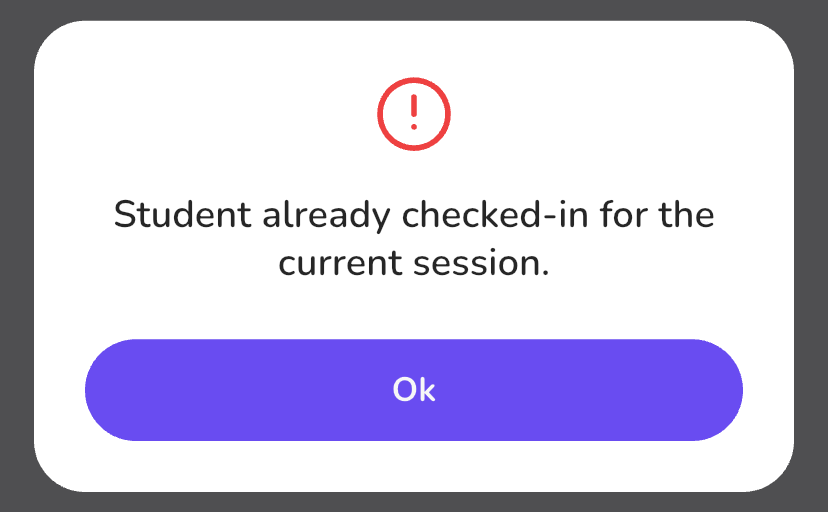
If a check-in or check-out cannot be completed, the app displays a dialog explaining the reason: