
TABLE OF CONTENTS
How to Print the Transcript?
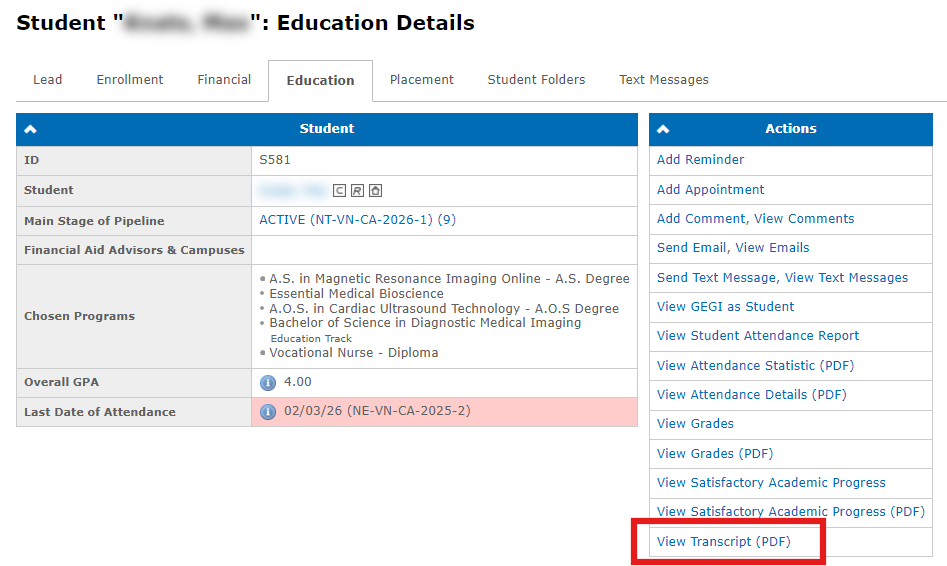
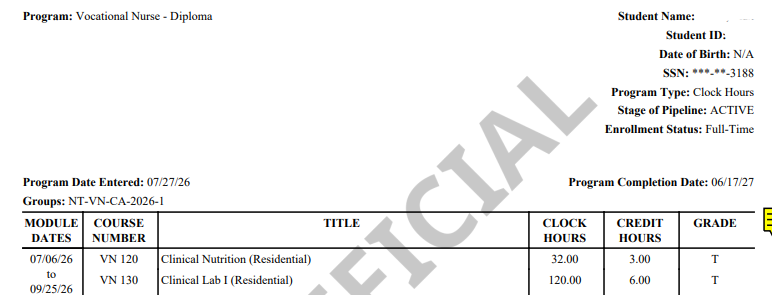
To view or download the transcript, go to the Education tab on the student’s profile and select View Transcript (PDF) from the Actions panel:
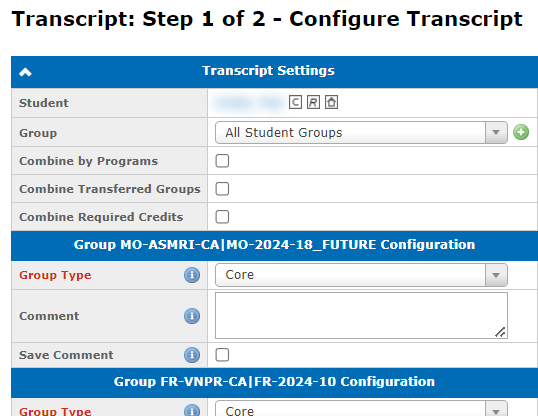
Before downloading, choose:
- The student groups to include — or use Combine by Programs to group them by program instead of by group:
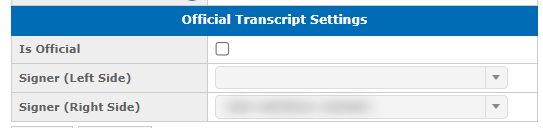
- The document type — Official (includes fields for school staff signatures) or Unofficial:
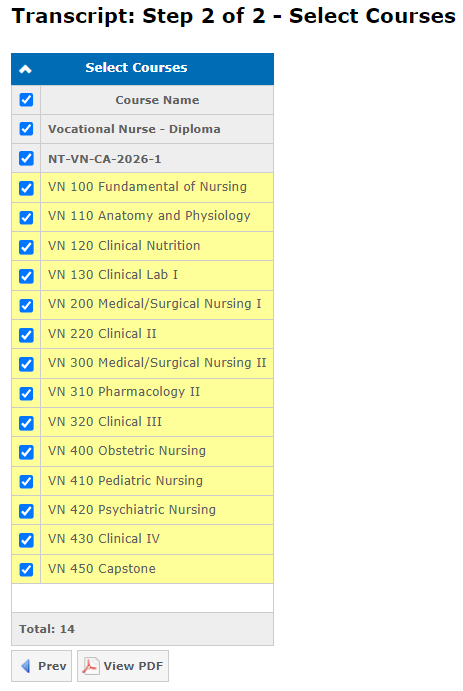
- The courses to include for each group:
- Any transfer credit courses to include — these print in a separate section on the transcript’s first page.
Programs and groups are sorted on the transcript by group start date, ascending or descending. Set the sort order in School Settings → Sort Programs in Transcript PDF.
Transcript Settings
The Transcript page, under Education → Settings, controls which fields appear in the transcript header and whether legend explanations print on the transcript PDF:
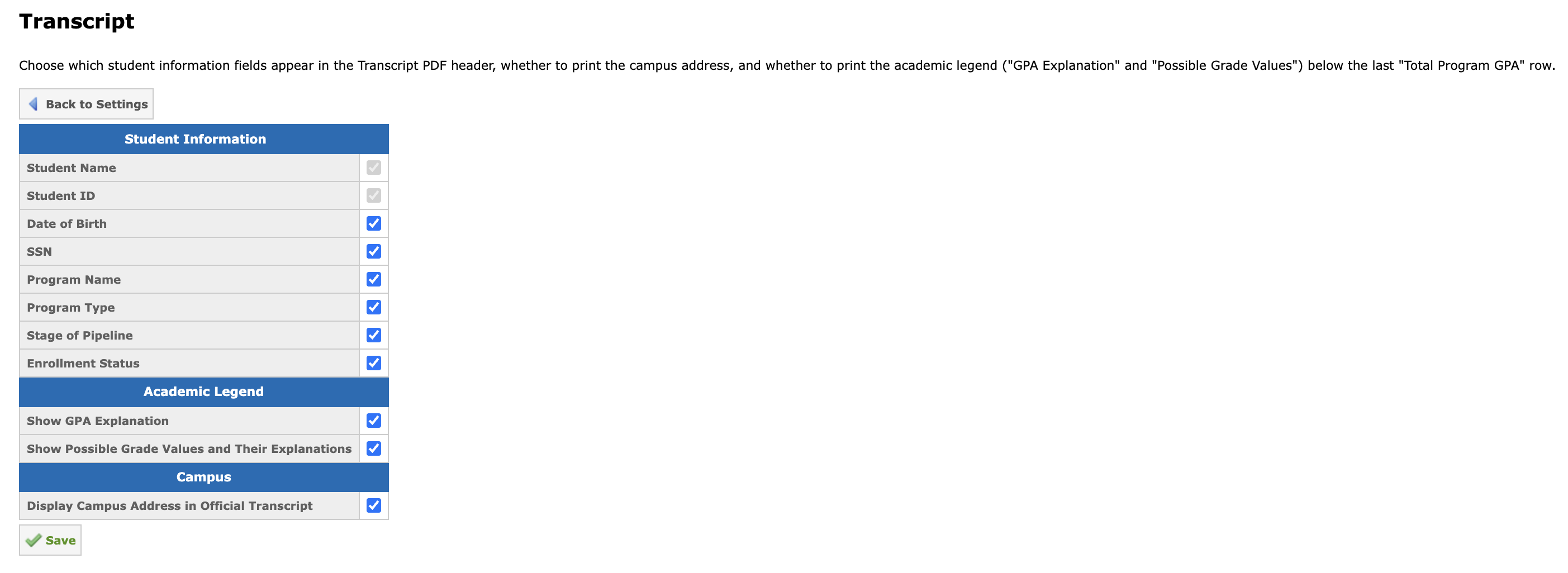
Student Information panel lists the available student and program header fields. Only fields marked Include appear in the transcript’s header. Field order on this panel matches their order on the printed transcript:
Academic Legend panel contains two toggles, both off by default:
- Show GPA Explanation
- Show Possible Grade Values and Their Explanations
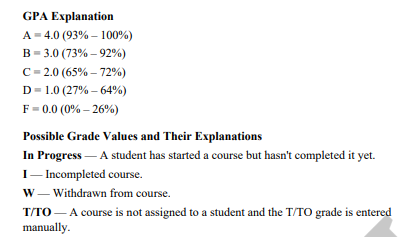
When a toggle is on, GEGI prints the corresponding legend once per transcript, below the final Total Program GPA line. If both toggles are on, GEGI prints both blocks as separate sections:
Campus panel contains the Display Campus Address in Official Transcript toggle, off by default. When enabled, the campus address is printed on the Official and Unofficial Transcript in the following format: Street Address, Suite/Floor, City, State, Zip Code:

Grades in Transcripts and Abbreviations
Point your mouse cursor on the note icon (or click it) in the transcript PDF document to see the popup with grades explanations:
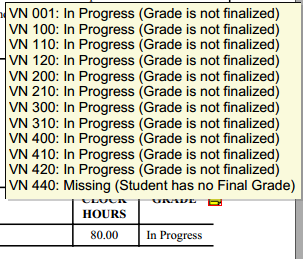
Note: The icon might look different, it depends on viewers. If you don't see this icon at all (ex: using browser’s PDF viewer), please try to open PDF document using another viewer (e.g. Adobe Acrobat Reader, Foxit Reader).
Possible grade values:
| Grade | Value |
| No Grade | There is no grade yet |
| Missing | Some course settings are missing |
| In Progress | A student has started a course but hasn't completed it yet |
| I | Incompleted course |
| W | Withdrawn from course |
| T/TO | A course is not assigned to a student and the T/TO grade is entered manually |
Here are all grades that need to be fixed, their short explanation and solution:
| Grade | Explanation | Solutions |
No Grade (Dropped before Course Start Date) | Official Date of Withdrawal/Expulsion is earlier than the first class date in this course. | Input grade manually on the Grading: View or Record Grades page (Edit Final Grade action). |
| No Grade (Classes are not scheduled) | Classes are not scheduled yet. | Configure class schedule on the Group "Name": Education Group Details page (Attendance: Class Schedule action). |
No Grade (Grade Components are not configured) | Grade components are not configured yet. | Configure grade components on the Group "Name": Education Group Details page (Grading: View or Record Grades action). |
No Grade (Course is not started) | Course is not started yet. | Wait for the course's start date. |
| No Grade (Course is not assigned to student) | Course is not assigned to student yet. | Assign courses on the Student "Name": Education - Courses in Student Group page. |
Missing (Letter Grades are not configured) | Letter grades are not configured yet. | Configure letter grades on the Grading: Letter Grades page. |
| Missing (Student has no Final Grade) | Grades are not inputted but student already has Is Final Grade. | Remove Is Final Grade, input grades and finalize grades again on the Grading: View or Record Grades page. |
In Progress (Student doesn't have Is Final Grade) | Student doesn't have Is Final Grade yet. | Finalize grades on the Grading: View or Record Grades page. |
| In Progress (Grade Components are not configured) | Course is already started but grade components are not configured yet. | Configure grade components on the Grading: Grade Components page. |
| In Progress (Student has absences) | Course is already started and student has absences. | View and edit absences on the Group "Name": Attendance page. |
Grade | Explanation | Possible Actions |
| I (Entered manually) | Grade was inputted manually. | Remove manual grade on the Grading: View or Record Grades page (Edit Grade action). |
| I (Student doesn't have Is Final Grade) | Course is already completed but student doesn't have Is Final Grade yet. | Finalize grades on the Grading: View or Record Grades page. |
| I (Student has absences) | Course is already completed but student has absences. | View and edit absences on the Group "Name": Attendance page. |
| I (Student was dropped) | Student was dropped and Official Date of Withdrawal and Official Date of Expulsion are empty. | Input Official Date of Withdrawal or Official Date of Expulsion on the Student "Name": Data in Group page. |
| I (Student was transferred) | Student is in the Transferred, Dropped Transferred, or LOA Transferred stage. | Check the grades in the group that the Transcript PDF is being created for. |
| W (Entered manually) | Grade was inputted manually. | Remove manual grade on the Grading: View or Record Grades page (Edit Grade action). |
| W (Student was dropped) | Student was withdrawn from group after course's start. | Input grade manually on the Grading: View or Record Grades page (Edit Grade action). |
T/TO | Course is not assigned to student yet.
| Input grade manually on the Grading: View or Record Grades page (Edit Grade action). |
Total Completed Hours
All clock and credit hours from completed courses are summed on the transcript. If a course has a Transcript Minimum Grade, % configured, its hours are only included if the student’s final numeric grade meets or exceeds that threshold — otherwise, the course hours are excluded from the total.
You can read more about Grades and Attendance in the following article How to configure and enter Attendance and Grades?