
GEGI supports integration with Canvas LMS (https://www.instructure.com/canvas).
TABLE OF CONTENTS
- Integration Settings
- Enabling Synchronization
- Canvas Synchronization Status
- Grade Components Synchronization
- Grade Synchronization
Currently, the following integrations are implemented:
- Import Canvas assignments into GEGI as grade components.
- Import student grades from Canvas submissions into GEGI.
Integration Settings
Get in touch with the customer care team to enable the integration and its settings.
After the initial configuration (URLs, keys, etc.) is complete, the School Settings will have the following settings available:
- "Days Before Course Start to Enable Sync" — how many days before the course start date the synchronization window opens. 21 days by default.
- "Days After Course End to Disable Sync" — how many days after the course end date the synchronization window closes. 14 days by default.
- "Period of Synchronization: Grades, minutes" — controls the grade import cadence within the synchronization window. 120 minutes by default.
- "Canvas Assignments Sync Period, minutes" — how often GEGI imports Canvas assignments as grade components. 120 minutes by default.
Enabling Synchronization
Turn on Synchronize Grades with Canvas course setting in the program to sync it. Groups created from that program inherit the setting, and it can be adjusted per course within the group.
In a clinical course, the setting applies to all its clinical rotations at once, though each rotation can still be switched independently from its own edit form.
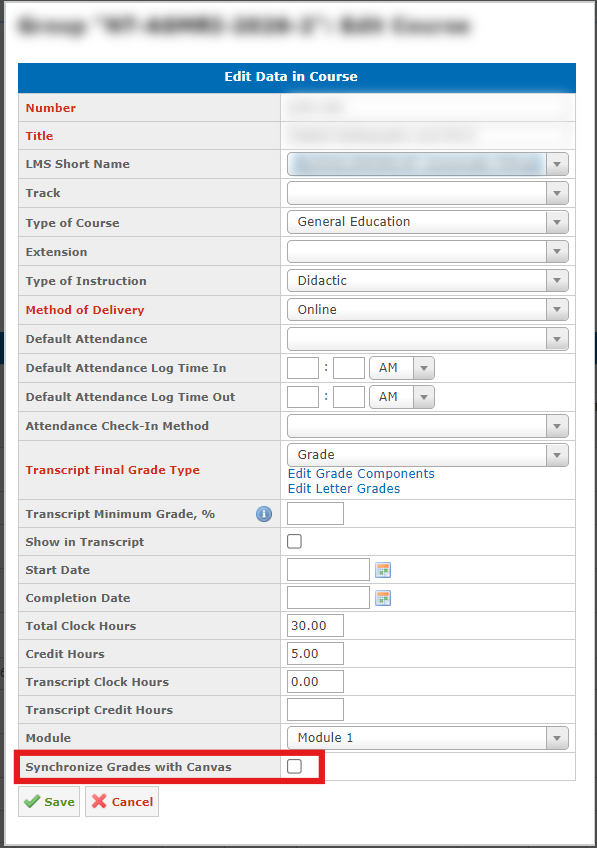
Enabling the setting for a course with existing components will drop subcomponents and their weighting — Canvas does not support hierarchical grade components.
Canvas Synchronization Status
You can check if the course is synced with Canvas via the Canvas Synchronization Status column on the Education Group Details page for didactic courses and on the Clinical Rotations page for each rotation.
Hover over the status for details:
- "Disabled" — the Synchronize Grades with Canvas setting is disabled, the course is outside the synchronization window, or missing a start/completion date.
- "Scheduled" — the Synchronize Grades with Canvas setting is enabled, the synchronization has not yet run, but is planned to.
- "Synchronized" — the synchronization was successful. Colored green if no issues, yellow — if some assignments were skipped (see tooltip for full assignments list).
- "Failed" — there was an error during the synchronization. Check the tooltip for the exact reason.
Grade Components Synchronization
Canvas assignments sync into GEGI as grade components automatically based on the Canvas Assignments Sync Period, minutes schedule. The components in GEGI are created, updated, or removed to match Canvas. Manual edits made directly in GEGI hold only until the assignment changes again in Canvas.
Some assignments cannot be synced and are skipped instead:
- Grading types GEGI does not support: letter grade, GPA scale, not graded.
- Fractional point values.
Note: If the course has existing student grades, GEGI will not sync components with Canvas untill they are cleared.
Clinical Rotations
The didactic course linked to a clinical course does not sync with Canvas itself — it has no students or grades of its own. Each clinical rotation under it is its own Canvas course, syncing its own assignments and grades independently.
Enabling synchronization for a clinical rotation turns off the Grading Same With Course and Update from Course settings.
Grade Synchronization
Student grades sync from Canvas into the matching GEGI grade components automatically, based on the Period of Synchronization: Grades, minutes schedule, for any course with an open synchronization window and Canvas assignments already in place. Only graded submissions are imported, and each Canvas score converts to a GEGI grade according to the component’s grading type.
Grades are not imported for students who are no longer active (DROPPED, LOA) or who already have a final grade recorded.
If a Canvas score falls outside the component’s valid range (below 0 or above its max points) the course’s Canvas Synchronization Status shows "Failed" with a popover explaining the error. Every other student grade still syncs normally.